1- Browser Fixes
-
Browser Issue (something used to work but no longer does)?
- Try a different Browser for the same action
- Clear your Browser's Cookies and Cache- How To Clear Browser Cache
-
Update your browser
-
Google Chrome
- Here are the directions for how to update the Chrome application.
-
Mozilla Firefox
- Here are the directions for how to update the Firefox application.
-
Microsoft Edge
- Here are the directions for how to update the Edge application.
-
Apple Safari
- Safari updates automatically whenever you update your MacOS.
- Click Apple menu > System Preferences, then click Software Update
.
- See here for more, including specifications for particular MacOS versions. If you have an older OS, this resource has more directions on how to maintain it as best you can, or even upgrade it to newer OS's.
-
2- Device Fixes
- Soft Restart - Close Everything - Sometimes, you just need to turn everything off. This is a lighter version of shutting off your whole device. Instead, just fully shut off any program or application that's giving you trouble.
-
- Hard Reset/restart- Hard Reset- What Is It and How To Do It?
***All of these above steps combined should resolve 90% of your device's issues and help your device to perform better, connect better, and maintain internet connection better.**
3- Device Updates
Check for Device Updates
Windows 10
Select the Start button, and then go to Settings
> Update & Security
> Windows Update
. See here for more.
Windows 11
Select Start > Settings
> Windows Update
. See here for more.
MacOS
Click Apple menu > System Preferences, then click Software Update .
See here for more, including specifications for particular MacOS versions. If you have an older OS, this resource has more directions on how to maintain it as best you can, or even upgrade it to newer OS's.
ChromeOS
In the bottom right, click the time, and then Settings . Click "About ChromeOS". Under "Google ChromeOS," click Check for updates. If an update is available, it will automatically start downloading. See here for more. Google also made a great interactive tutorial on how to do this.
4-Unstable Network aka Connectivity Issues
“Unstable network for video” means your internet connection is struggling to maintain a steady signal.
-
This could be resolved by restarting your Modem
Unplug your modem/router.
Wait 30 seconds to fully power cycle the device.
Plug it back in and allow it to reconnect.
Move closer to your router if you're on Wi-Fi.
Using an Ethernet cable instead of Wi-Fi can improve speed and reliability (if your device has an Ethernet port). If issues persist beyond this, you may need to contact your provider to upgrade your internet plan.
-
Speed Problems?? It's entirely possible that your internet speed (click here to Test) isn’t strong enough for video or that local network traffic is high.
Click here for Speed requirements for PLI work
Heavy internet traffic can cause dropped connections, freezing, buffering, and delays. Internet usage often peaks in the morning, at lunch, and between 5–10 PM.
-
If your speed values are too low during testing, it maybe worth you visiting with your local internet provider to see if there's anything they can do on their end.
-
They have a few little tricks they can perform (system resets, device resets, data update pushes, etc) that might help you get a more stable connection.
-
5- Close all unnecessary applications
Background applications consume CPU, RAM, and bandwidth. When using Zoom, close unnecessary programs and tabs to improve performance. Since your device can only handle so many tasks at once, reducing what’s running will help prevent slowdowns.
-
How to check for unnecessary programs in the background:
- On your keyboard, press Ctrl, Shift and Esc keys at the same time to open Task Manager.
- Under the Processes tab, click CPU to filter applications by their CPU usage, then right-click the CPU-hogging applications and select End task.
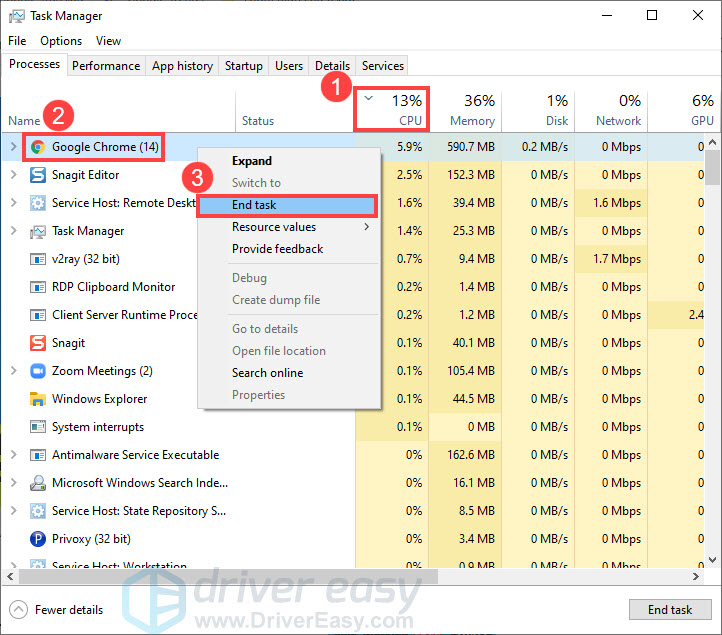
Only keep open apps/programs like PLIC, Canvas, and Zoom, except for anything you might need directly related to that day's lesson
6- Impact of other home or local devices on your available internet bandwidth
-
Ensure other internet-connected devices in your home or workplace are not actively using bandwidth. Ideally, they should be turned off or placed in standby mode so they aren’t consuming network resources.
- Smart Phones in your home including your iPhones, Androids, and Google Phones
- Tablets including iPads, Kindles, Lenovos, Chromebooks, etc
- Smart TVs
- Roku and Firestick devices
- Video Game consoles (X-box, PlayStation, Nintendo, etc)
- Other PCs and laptops
- Alexa Home Devices or Google Home Devices
- Facebook Portal Devices
- Home Smart Camera and Security Networks
- Smart appliances like refrigerators, thermostats, and more
7- High CPU Occupation (ie. running slow)
“High CPU Occupation” means your computer’s processing power is maxed out, which can interfere with large data tasks. Zoom is especially resource-intensive—particularly when screen sharing—because your system is downloading and uploading data at the same time.
Several factors can contribute to this:
- CPU Processor speed (how quickly your computer can handle multiple tasks). When the CPU reaches its limit, it may shut down certain processes to reduce strain.
-
RAM is another major factor and is heavily influenced by multiple tab openings and background apps/processes running.
- Most computers come with at least 8 GB of RAM, though newer models often have more.
- Zoom can use up to 4 GB while running, meaning on an 8 GB system it may consume about half of your available memory.
- If your computer slows down when you have 10+ tabs open, limited RAM could be the cause.
- Click here to learn how to identify your CPU Speed and RAM values
-
Upgrading CPU or RAM can be costly and time-consuming. If you think this might be needed, you may want to consult the PLI Support Team to have them weigh in to assess your specific situation.
- Note- Unfortunately, the costs of such upgrades would be solely the teacher's responsibility
8-Problems Persist
*If none of these steps resolve your problems, we'll need to do some additional digging and will need to assess your Windows PC for certain Diagnostic characteristics. Please click the following link to follow steps to gather the necessary full screen screenshots of data to share with PLI Support (in your ongoing ticket).
9-Update and/or Install New Drivers
If those attempts do not improve performance, then we might need to explore a more intricate option. *not recommended without prior experience-it is easy to damage critical files if you aren't certain of the actions you're taking
https://www.drivereasy.com/knowledge/how-to-fix-zoom-high-cpu-usage/
Click here for help on Tech Troubleshooting